
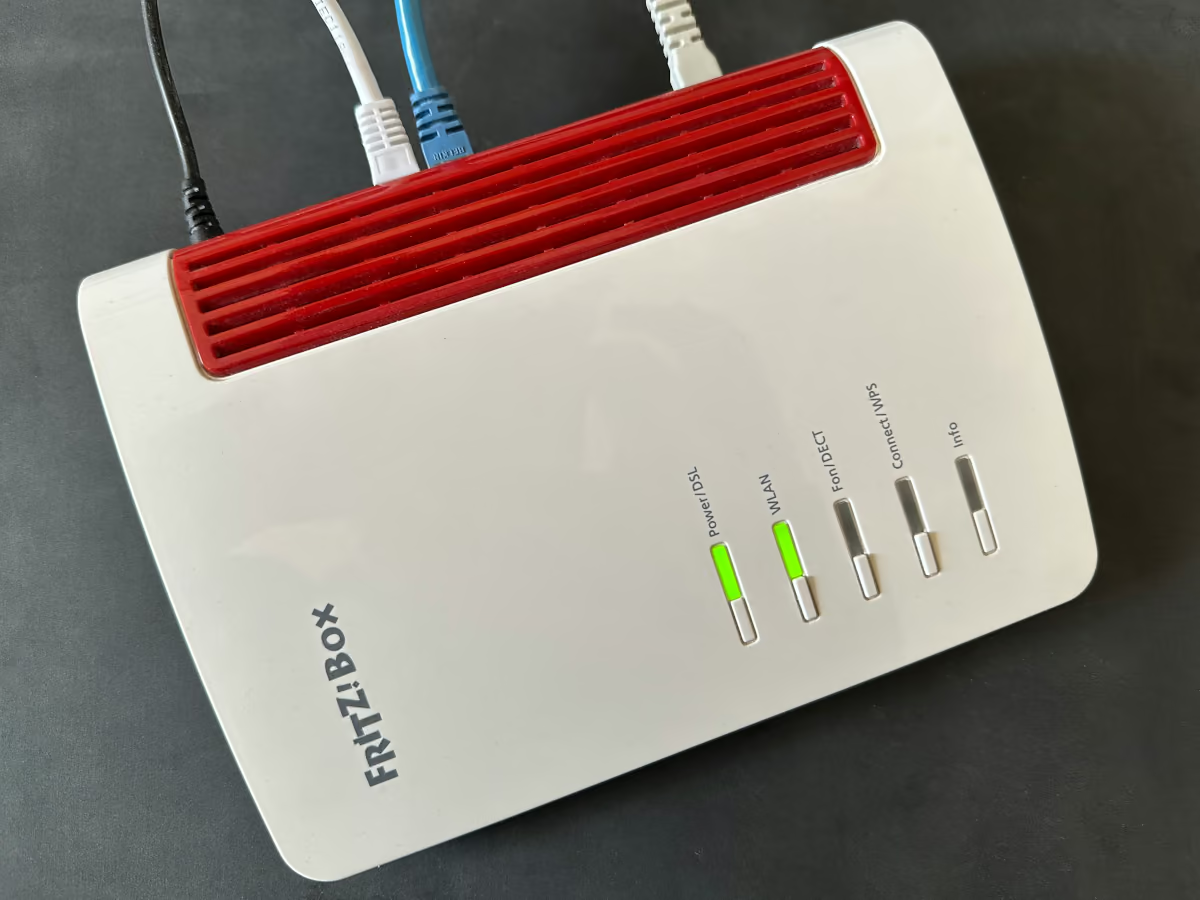
The goal of this project is to implement a local, lightweight, solution for archive and general file storage by leveraging the built in Network Attached Storage service of a Fritz!Box broadband router.
This article documents the steps taken to configure a Fritz!Box 7530 broadband router with network attached storage and connect both Windows and Raspberry Pi clients to it.
Drive format…
In order for the NAS to use a drive larger than 32GB the drive has to be formatted either as exFAT or NTFS, the Fritz!Box can use either.
There is detailed documentation here and here on the Fritz! website which shows how to configure NAS storage. While broadly inline this project takes a slightly different approach.
I should reiterate the health warning on the projects main page and emphasize the following key points;
- The network is entirely private; password protected WiFi and no access to the network from the public internet.
- Files stored on the drive as backup also backed up in other locations
- Sensitive data is encrypted locally before it is stored on the Fritz!NAS.
You are welcome to replicate what you see here but you should ensure that any security measures taken are sufficient for your needs and adjust them to suit your circumstances.
Preparing the USB Drive for Use
For this project a 64Gb, Windows 10, recovery drive was recycled. Before inserting it into the router it was necessary to delete the existing volume and reformat the drive with a simple volume which covered the full extent of the drive. The volume was named and formatted as exFAT. This was done using the Windows Disk Management tool for ease.
The volume name appears in your network locations hierarchy, under the router and NAS name, alongside the router’s internal storage volume. It also appears under the mount point on Linux based operating systems.
Once inserted into the router, the router creates an empty folder called Fritz additional folders can be created either through the Fritz!NAS UI or by connecting a network client and using the client UI.
Folder named: System Volume Information…
The Windows Disk Management tool creates a folder called System Volume Information for its own security management purposes. This can be deleted as the Fritz!NAS does not use it, although a Windows client will recreate it if the drive is inserted into a Windows machine.
Connecting a Windows Client
- Open Windows File Explorer
- In the left window scroll down to Network and expand the Network tree.
- Double click the entry for the router with the NAS storage.
- Enter a user name and the corresponding password for a Fritz!Box user with access to NAS contents.
Fritz!Box Users…
To manage Fritz!Box users login to the Fritz!Box and navigate to System>Fritz!Box Users. Users can be added / removed / updated and assigned rights to access NAS storage.
- Tick the “remember me” box to make the connection permanent. Leave it unticked for the connection to be cleared on reboot/logout.
Entra joined logins…
If the logged in user is an Entra ID Account it seems Windows will try an use those credentials automatically and then fail. If it does, then click the option to use alternative credentials.
Connecting a Raspberry Pi (Debian) Client
The technique described here establishes a connection to the NAS storage on boot and mounts the remote drive under /mnt/nas_local.
- Create the mount point.
sudo mkdir -p /mnt/nas_local- Create a credentials file.
sudo nano /etc/samba/nas-credentials- Add the following credentials to the file.
username=<username>
password=<password>
Username and Password…
Enter the user name and password from the list of Fritz!Box users with Fritz!Nas access permissions.
- Secure credentials file.
sudo chmod 600 /etc/samba/nas-credentialschmod permission values…
chmod 600 grants Read and Write permissions (rw——-) to the owner, only. The file is owned by root so you’ll need a login with sudo privileges to access it at least.
- Configure /etc/fstab to mount share automatically.
sudo nano /etc/fstab- Add the following entry to /etc/fstab.
//<Server IP/Hostname>/<Share name>/<Volume name> /mnt/nas_local cifs credentials=/etc/samba/nas-credentials,rw,uid=1000,gid=1000,file_mode=0775,dir_mode=0775,noserverino,_netdev,nofail 0 0fstab entry explanation…
| Field | Meaning |
|---|---|
| //Hostname/Share_Name/Volume_Name | The SMB/CIFS network share being mounted. |
| /mnt/nas_local | Local mount point where the share appears in the Linux filesystem |
| cifs | Filesystem type. CIFS is the Linux driver used for SMB network shares (Windows shares). |
| credentials=/etc/samba/nas_credentials | Reads the username and password from this file instead of exposing them in the fstab file. |
| rw | Mount read-write. Users can both read and modify files. |
| uid=1000 | Files on the share appear owned by Linux user ID 1000 (usually the first non-root user created on the system). |
| gid=1000 | Files appear owned by group ID 1000 |
| file_mode=0775 | Sets permissions shown for files: – Owner: rwx – Group: rwx -Others: r-x |
| dir_mode=0775 | Sets permissions shown for directories using the same permissions mask. |
| noserverino | Disables use of inode numbers supplied by the SMB server. Helps avoid issues with applications when the server provides unstable or excessively large inode numbers. Commonly used with older Samber implementations and some NAS devices. |
| _netdev | Indicates this is a network filesystem. System waits until networking is available before attempting the mount during boot. |
| nofail | Boot continues even if the share is unavailable. Without this, a missing NAS could delay or fail the boot process. |
| 0 (fifth field) | Do not use the dump backup utility on this filesystem. |
| 0 (sixth field) | Do not run fsck filesystem checks on this network filesystem during boot. |
- For testing mount the share manually without rebooting.
sudo systemctl daemon-reload
sudo mount -a
daemon reload…
The contents of fstab have been updated or changed but systemd will still be using the old configuration, therefore in order for the mount command to work the systemd configuration must be refreshed.
- And verify with either of the following commands
mount | grep nas_local
df -h /mnt/nas_local- Finally Reboot to confirm that the share is mounted automatically.