
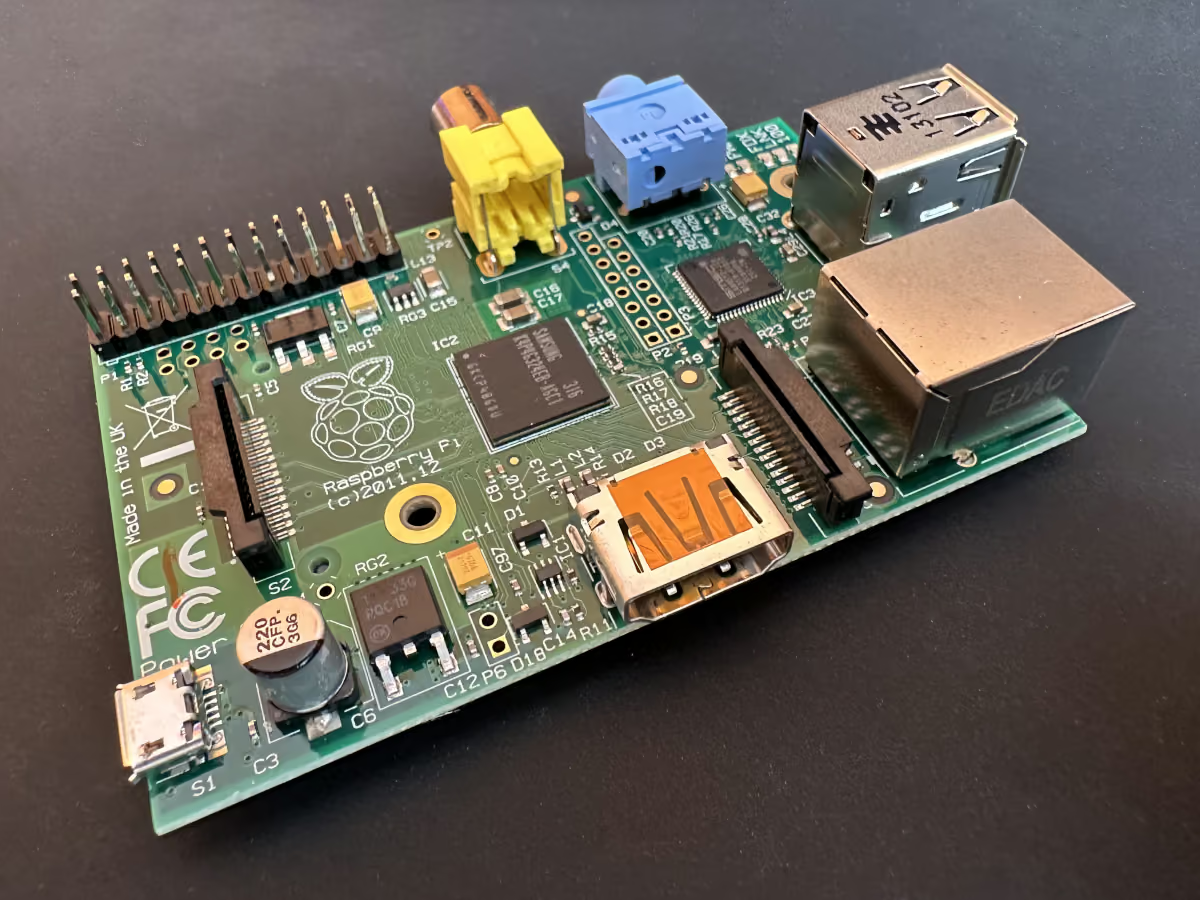
Over the years we have amassed a sizable fleet of Raspberry Pi Computers; each one built and configured, at the time, with a specific purpose in mind, using the current version of Pi OS.
The only recommended way of updating a Pi OS/Raspbian image is to do a clean install and then re-install apps and copy across files. This is neither a trivial or risk free task and inevitably was never done or resulted in a drift of archived micro SD cards. With the advent of M.2 SSDs as a storage solution for Raspberry Pi Computers a clean re-install looks even less appealing.
The result is a fleet of Raspberry Pi Computers on different, mostly unsupported, versions of Linux going back to Pi OS Wheezy (probably) and including Ubuntu.
The aim of this project is to update the fleet to the latest Pi OS (Trixie) or the latest LTS Ubuntu ( 26.0.4.1).
The first wave of updates are:
| No. | Type | OS | Release From | Release To | Done |
|---|---|---|---|---|---|
| 1 | Pi 4 | Pi OS | Bullseye | ? | |
| 2 | Pi 4 | Ubuntu | 22.04.5 | 26.04.1 | ✓ |
| 3 | Pi 400 | Pi OS | Bookworm | Trixie | ✓ |
| 4 | Pi 5 | Pi OS | Bookworm | Trixie | ✓ |
Bookworm to Trixie
The official line from Raspberry Pi Towers is that upgrading a Debian image by major versions is not recommended however this recent post in the Raspberry Pi forums by a Raspberry Pi engineer indicates that although it’s is not recommended, it is possible and here are the commands necessary to achieve it.
The forum post is heavily caveated and references an article in the Debian documentation which goes into more detail on the upgrade process. The article also includes diagnostic and recovery information in the event that the process encounters errors or fails.
Below simply walks through the steps described in the original forum post. Additional notes have been added for clarity, but all credit belongs to spI23
Paying attention to some of the Caveats:
- We’re not relying on these machines.
- Any important code is uploaded to GitHub.
- Any important documents are archived.
- What’s the worst that can happen: Clean Install and the opportunity to recreate/refresh previous projects.
Starting with a Bookworm image running desktop under labwc.
If the Pi is not running under labwc, check to make sure, follow the steps in the dropdown…
Use the Raspberry Pi Configuration Tool, click on Advanced Options and confirm Wayland (Labwc) is selected, then restart the Pi if the setting changed.
In a terminal window run the following set of steps:-
- Ensure the image is up to date with all recent changes.
sudo apt upgrade
sudo apt full-upgrade- Update the apt configuration for Trixie. In the file /etc/apt/sources.list change every reference to “bookworm” to “trixie”.
Do the same for every file in /etc/apt/sources.list.d in practise, this just means the file raspi.list. Files ending .list and .sources are for third party repositories; Ubuntu, Debian, Docker etc. Files ending with .orig, .save and .bak are ignored by apt so can safely be ignored here.
Updating these files is easily achieved with nano, refer to the shortcuts listed at the bottom of the nano editor window for Replace, Write, and Exit.
sudo nano /etc/apt/sources.list
sudo nano /etc/apt/sources.list.d/raspi.list- Run apt update to refresh the local package index with the list of Trixie packages.
sudo apt update- Remove obsolete Bookworm code.
sudo apt purge -y raspberrypi-ui-mods
sudo apt autoremove -y- Upgrade Bookworm packages to Trixie.
sudo apt full-upgrade -y -o Dpkg::Options::="--force-confdef" -o Dpkg::Options::="--force-confnew" --purge --auto-removeThis command is critical – ensure it’s identical and the punctuation is correct.
It is safest to copy and paste this command line, even refer to the original RPi forum post to ensure it is correct.
At this point it’s best to leave it running – time for a brew. There are a couple of prompts, at least. One regarding restarting services and another regarding files changed/updated. In each case “yes” is the recommended, correct answer (probably). It worked on my machine. So although there is time to make a brew don’t leave the machine completely and expect it to have finished when you get back; audience participation is required.
- Install two new Trixie packages.
sudo apt install -y rpd-wayland-all rpd-x-allIf all has gone well and the process completed without errors then all that is required is a reboot. Before rebooting ensure that the file system has cleared all it’s caches by running the sync command.
7. Ensure the upgrade process has finished writing to storage and reboot.
sync
sudo reboot- After the reboot, confirm that the Pi is running Trixie with the command.
lsb_release -cFor the full taskbar based Trixie desktop experience follow the guide published here…
Ubuntu 22.0.4.5 to 26.04.1
Ubuntu has a built in command to upgrade to the next release, so in that respect it is relatively easy. But the upgrade is only to the next LTS release so this upgrade will have to be executed in two stages 22.x.x -> 24.x.x then 24.x.x -> 26.x.x. The steps below do not specify the releases to upgrade so they can be used to upgrade any release to the next equivalent major.
- Ensure the Pi is up to date with all the latest changes by opening a terminal window and doing.
sudo apt update
sudo apt full-upgrade -y
2. Update the RPi eeprom to the latest for this release.
Note if the upgrade is being executed remotely from an ssh session…
If running remotely/headless, the upgrade process at step 3 below will warn against it because in the event of a failure its harder to see what has happened and harder to recover.
In this case it might be preferable to shutdown rather than reboot the Pi after the eeprom update/check and then take the opportunity to attach a keyboard and screen.
The release upgrade process does provide the opportunity to continue or bale out at the point of warning .
echo $BOOTFS
mount | grep boot
export BOOTFS=/boot/firmware
sudo rpi-eeprom-update
sudo rpi-eeprom-update -a
sudo reboot
Explanation
| Command | Reason |
|---|---|
| echo $BOOTFS | Check the BOOTFS env variable hasn’t been set |
| mount | grep boot | Confirm mount point for firmware |
| export BOOTFS=/boot/firmware | Set the BOOTFS env variable |
| sudo rpi-eeprom-update | Check current version of Rpi eeprom |
| sudo rpi-eeprom-update -a | Update the rpi-eeprom |
| sudo reboot | Reboot to update, Update will be applied during reboot. |
3. Update the Ubuntu release.
sudo do-release-upgradeThe release upgrade takes a while, time for a brew, there are a couple of prompts to respond to saying “yes” seems to be the recommended/safest option.
4. Assuming that the process completed with no errors, ensure the file system caches are empty and reboot.
sync
sudo reboot
This should get you to Ubuntu 24.x.x. From checking the state of the Pi after reboot, the RPi eeprom was already up to date but to be sure check using the following command:
sudo rpi-eeprom-update // check current version of Rpi eepromTo complete the journey to LTS release 26.x.x repeat the steps 1,3 and 4 above (assuming that the eeprom is up to date).
Bullseye to Bookworm or Trixie
Confirmed by an AI query; the only recommended way to do this is via a clean install. The method above for Bookworm to Trixie will not work due to the differences in architecture between the two releases.
The AI provides a set of manual steps and there is a clue (perhaps) in the Debian documentation on the subject. As yet this upgrade path remains on the backlog, to do.